How Does the Machine's Algorithm Logic Work?
The machine’s algorithm logic has four phases:
Product Setup: Merchants first set up product templates in the app (including name, price, etc.). This gives the AI a reference for recognition.
Purchase Process: When a customer opens the door using a supported payment method, built-in cameras record the entire product selection process.
Recognition: Using the recordings, the AI compares pre- and post-purchase differences, then matches items against product templates to identify them.
Settlement: After recognition, the AI generates an order for deduction, and payment is processed automatically.
Abnormalities: If the AI fails to recognize products, an “abnormal order” is created. Merchants can manually review and charge the customer in the app.
What is the Monthly Fee Composed of?
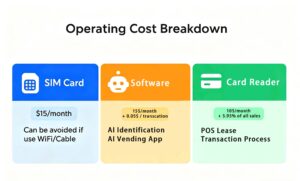
The monthly fee per machine is $40, covering:
- $10 for POS
- $15 for SIM card
- $15 for SaaS
We will charge the service fee proportionally based on the actual number of days the equipment is used.
What are the payment rules for the withdrawal service?
Our company’s unified payment date is Wednesday.
Regarding the specific payment rules: if you initiate a withdrawal before 12:00 PM (midnight) on Tuesday, we will process the payment on Wednesday of the same week, and you will receive the withdrawal within the week you initiated it.
If you initiate the withdrawal on Wednesday itself, we will process the payment on the following Wednesday, which means you will need to wait for one week to receive your withdrawal.
How to Transfer Your Equipment to Someone Else?
We provide a machine transfer service to other merchants. Here’s how it works:
- A $50 transfer fee is required for machine transfer, a transfer document (see attachment) must be signed. This document serves as proof of the machine transfer.
- Important note:
- The “Company / Personal Signature” field must be signed by the original merchant.
- The “Authorized Agent’s Signature” field must be signed by the new merchant.
- The Product Templates will be lost during transfer.
What is the Extended Warranty and How to Extend Warranty for My Machine?
The Extended Warranty covers free parts, remote support (for hardware like motherboards, refrigeration systems, and payment modules), and on-site service for complex issues. It excludes damage from human error, natural causes, power surges, consumables, and unauthorized repairs.
Fees:
$280 for 1 year
$450 for 2 years
$540 for 3 years (per machine)
To extend, purchase within the original 1-year warranty (maximum total coverage: 4 years). Payment can be made via bank transfer or credit card, with coverage starting one month after signing. For full details, please contact customer service or refer to the dedicated page.
How to Stock and Restock the Machine?
You can refer to the HAHA Software Manual available in the app’s Support channel.
How to Adjust the Pre-authorization Amount?
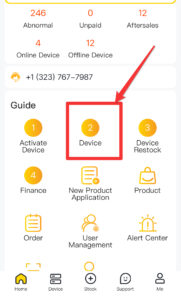
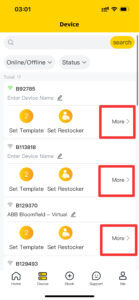
On the app’s homepage, tap “Device” and select the device you want to configure. Then, tap “More” to access the device details page, where you can modify the pre-authorization amount. The minimum amount is $0.10, but we recommend setting a higher pre-authorization to minimize potential losses.
How to Update the Information of Your Receipt?
To update receipt information (e.g., phone number, email, business name), please contact the support team in the app.
How to Export Sales Report?
Please visit Haha Vending on your computer and log in with the email used to register the app. From there, you can view monthly sales and restocking records, as well as export customized sales reports for any selected period.
Where Can I View and Handle the Abnormal Orders?
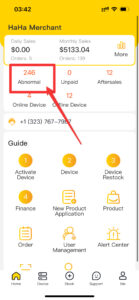
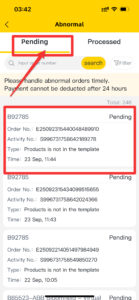
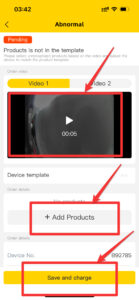
On the app’s homepage, tap “Abnormal” to view orders that need attention. Select an order to see the details and the reason it was marked as abnormal. Watch the video to review the products taken by the customer. Tap “Add Products,” verify the details, and then click “Save and Charge” to finalize.
Note: Abnormal orders must be resolved within 24 hours by merchants only. Once you click “Save and Charge,” the order cannot be modified. To avoid losses, double-check the products before saving.
How to Add the Sub-admin of the Machine?
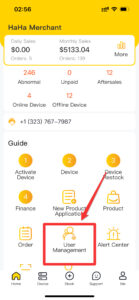
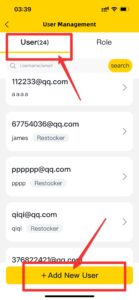
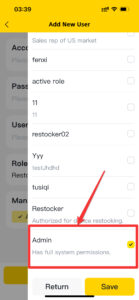
The system has default roles for “Administrator” and “Restoker.” To assign an account as an administrator, go to “User Management,” tap “Add New Role” at the bottom, fill in the account details, and select “Administrator” as the role.
How to set up Sales Tax?
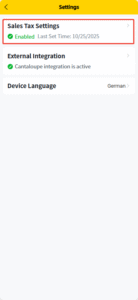
You can configure the sales tax both globally and on a per-machine basis in the app’s settings.
Refer to this page:

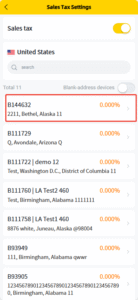
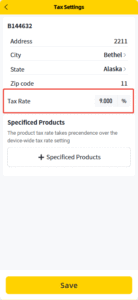
– It will display all activated devices under the merchant’s account.
The sales tax switch is turned on by default, with a default tax rate of 0.000%.
Merchants need to select the device to set the tax rate.
– Merchants are required to fill in the device address (mandatory),
the unified tax rate for the device (optional), and the special product tax rate (optional).
– Note that the tax rate should be entered with a % sign.
For example, entering 2.000% means that a tax of 0.002 of the product price will be charged.
– Multiple special products can be selected to charge tax.
How to Set the Cost Price?
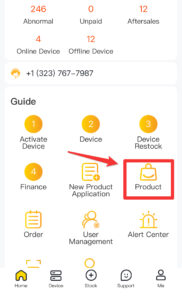
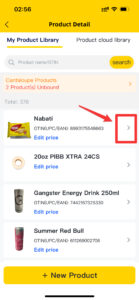
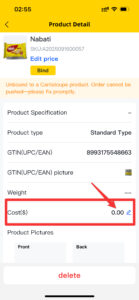
On the app’s home page, click on the “Product”, select the product and click on the small arrow on the right. Locate the cost price and click to modify.
How to set up WI-FI for the machine?
First you‘ll need a external router to connect your device to the local Wi-Fi.
The router connections supported by our products are as follows:
we support Tenda AC1200, Tenda N300 (F3)
Link as follow
https://www.amazon.com/dp/B06X1CHFJ5
After receiving the router, please contact our service team directly for more details and support.
What is a frozen device and why is it necessary to freeze the device?
The freezing function prevents customers from using the machine, but it does not affect cooling functions. Freezing typically recommanded when the device is still in demo mode. We need to contact the bank to upgrade your card reader from a demo version to a official version. During this period of time, your machine will be in a demo mode, it looks like your machine could work normally, but in fact, the card reader won’t charge anyone. To avoid any possible financial losses, we’ll freeze your machine.
How to Freeze the Machine?
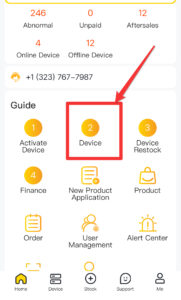
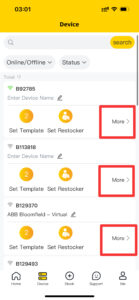
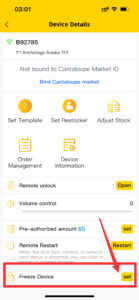
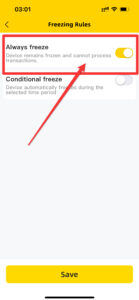
On the app’s home page, click on “Device”, select the device number you want to set, then click “More”. You will then see the device details page, at the bottom of the page, you can set the freeze device.
How to Set up an Alert for Power Outage?
On the app’s home page, tap “Alert Center” and select the “Device Power Off” alert. Choose the device number, select the users to notify, and save. The app will send a notification when the device loses power.
How to Set up an Over-temperature Warning Alert?
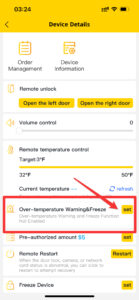
On the app’s homepage, tap “Device,” then select the “More” option next to the device. Find the “Over-temperature Warning & Freeze” setting.
Note: If the over-temperature freeze function is enabled, the device will freeze when the temperature exceeds the set range, preventing sales and door access. Once the temperature returns to the correct range, the device will automatically unfreeze.